LM Studio CLI(lms) 사용 방법과 OpenClaw 연동 (예제: gemma4 MLX)
macOS에서 로컬 LLM을 실행할 때 많이 사용하는 선택지는 3가지입니다.
- ollama
- LM Studio와 CLI
- mlx
이 방법 중 저는 2번인 LM Studio CLI를 사용하여 gemma4를 실행했습니다. LM studio의 설명은 이전 글에서 확인할 수 있습니다.
https://malwareanalysis.tistory.com/794
LM studio 설치와 LLM 모델 다운로드
1. 개요이 글은 LM studio 설치방법과 LM studio에서 허깅스페이스에 공개된 모델 설치하는 방법을 설명합니다.LM studio CLI(lms)는 아래 글에서 볼 수 있습니다.- https://malwareanalysis.tistory.com/923 LM studio CLI(
malwareanalysis.tistory.com
사양
- Mac mini 4 16GB
LM Studio와 CLI 설치
공식 홈페이지의 설치 스크립트로 쉽게 설치할 수 있습니다. 설치 스크립트는 CLI만 설치하므로 LM Studio 데스크톱 앱은 별도로 설치해야 합니다.
curl -fsSL https://lmstudio.ai/install.sh | bash
설치가 끝나면 lms 명령어로 CLI를 사용할 수 있습니다.
lms
LM Studio 런타임 확인
LM Studio 런타임은 llama.cpp와 mlx 두 개를 지원합니다.
lms runtime ls
모델이 lms를 지원하는지 확인과 모델 다운로드 방법
lms get 명령어로 모델을 검색하고 다운로드합니다. 따라서 lms get으로 MLX 모델 지원 여부도 확인할 수 있습니다. 만약 MLX 모델이 없다면 아래처럼 검색 에러가 발생합니다.
lms get gemma-4 --mlx
lms get은 기본적으로 LM Studio 카탈로그에서 모델을 가져옵니다.
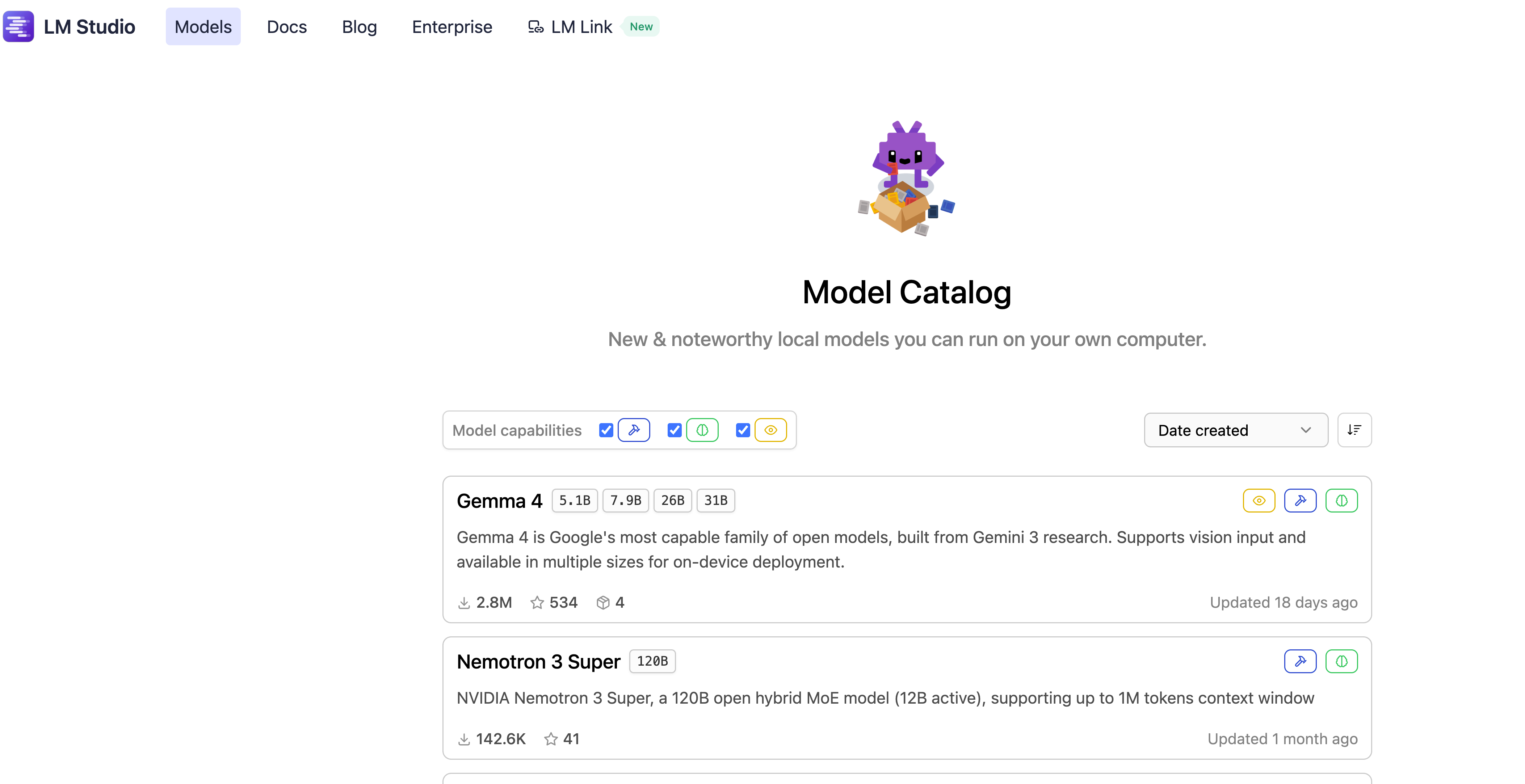
LM Studio 카탈로그에 MLX 모델이 없다면 Hugging Face에서 다운로드하면 됩니다. 아래 두 조건으로 모델을 검색합니다.
- MLX
- LM Studio
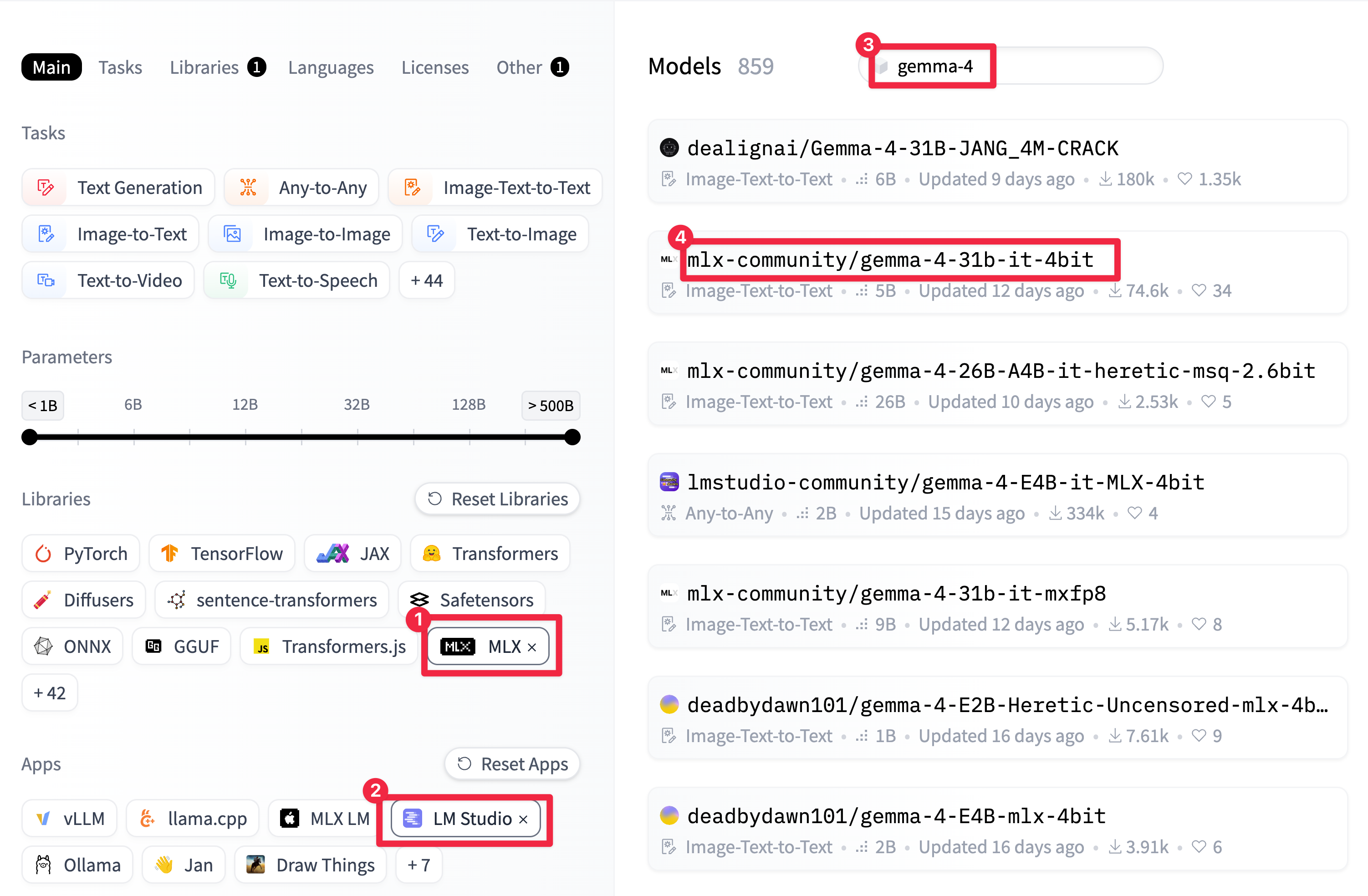
Hugging Face에서 MLX 모델을 찾았다면 https://huggingface.co/{repo}/{model} 형식의 URL로 다운로드합니다.
lms get https://huggingface.co/mlx-community/gemma-4-e4b-it-8bit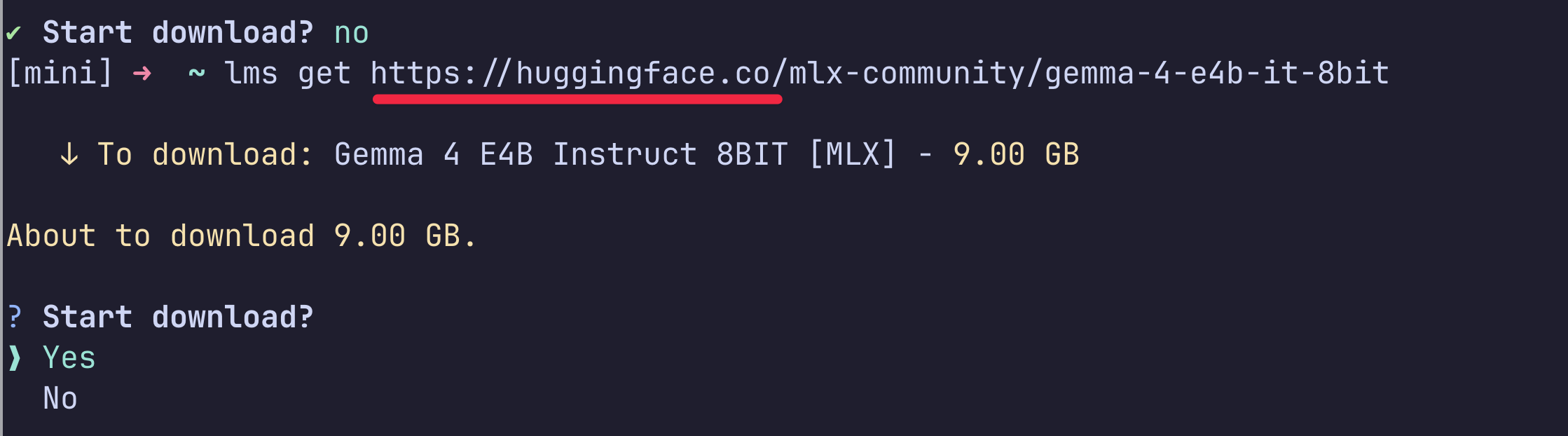
저는 lmstudio-community/gemma-4-E4B-it-MLX-4bit 모델을 다운로드했습니다.
https://huggingface.co/lmstudio-community/gemma-4-E4B-it-MLX-4bit
다운로드 도중 timeout이 발생하면 lms get을 다시 실행합니다.

다운로드 받은 모델 조회
lms ls 명령어로 다운로드한 모델을 조회할 수 있습니다.
lms ls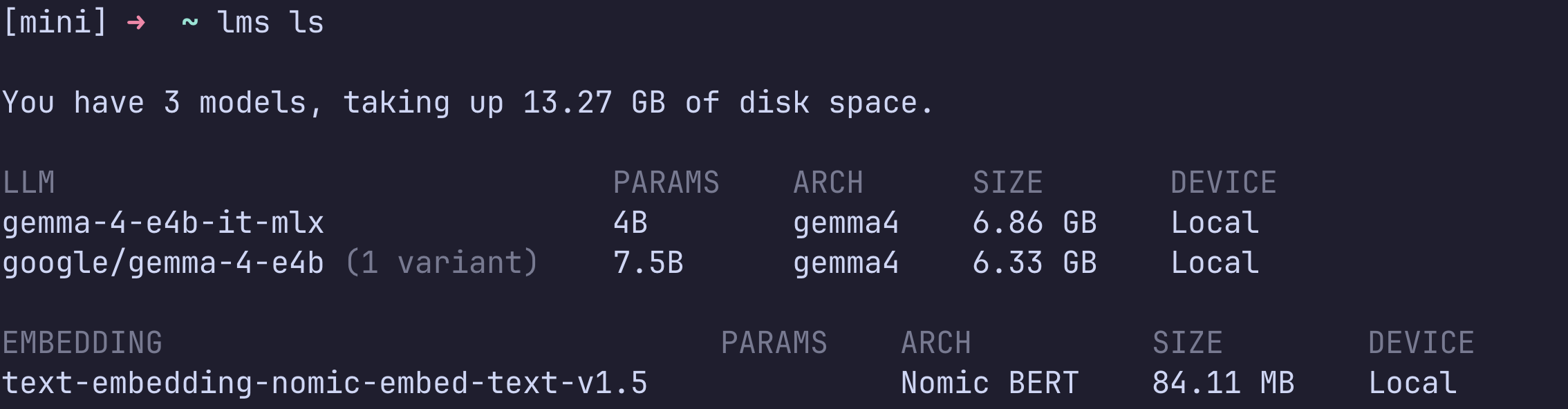
모델 로드
다운로드한 모델을 사용하려면 lms load 명령어로 모델을 메모리에 올려야 합니다. 먼저 lms ls로 모델 key를 조회한 후 lms load를 실행합니다.
lms ls
lms load {model key} --gpu max --context-length 8192 --identifier gemma4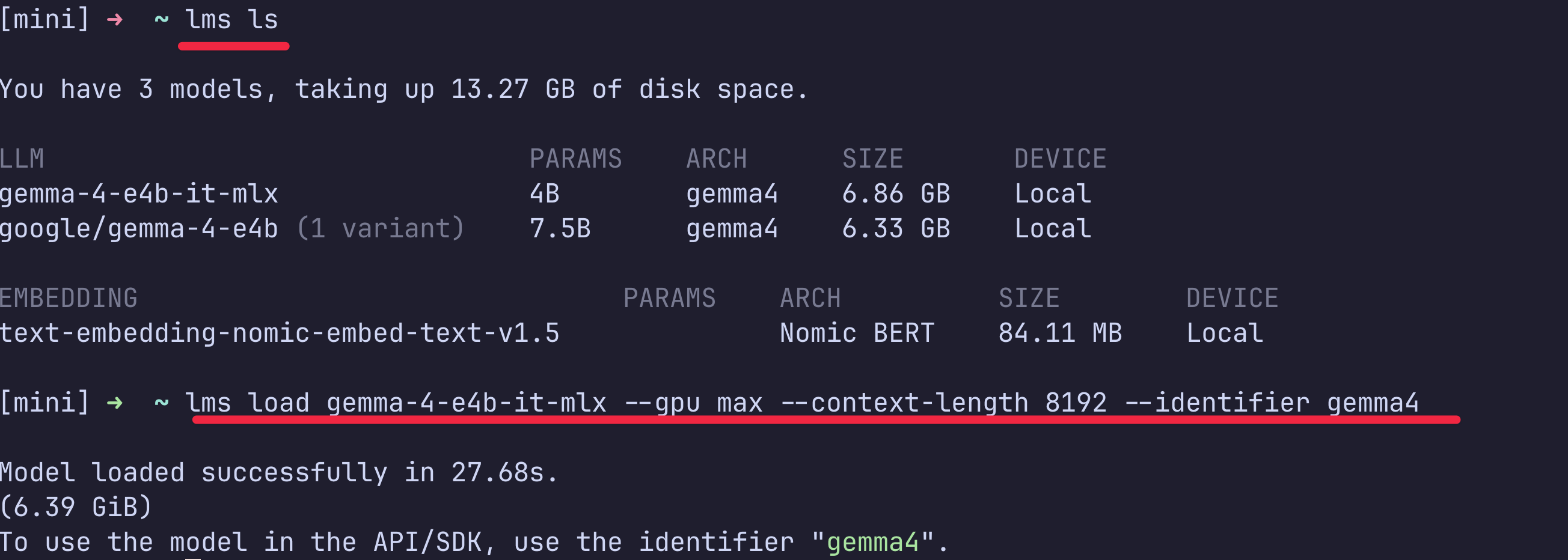
서버 실행
로드한 모델을 사용하려면 LM Studio 서버를 실행합니다.
lms server start --port 1234
lms ps 명령어로 로드된 모델을 확인합니다.
lms ps 
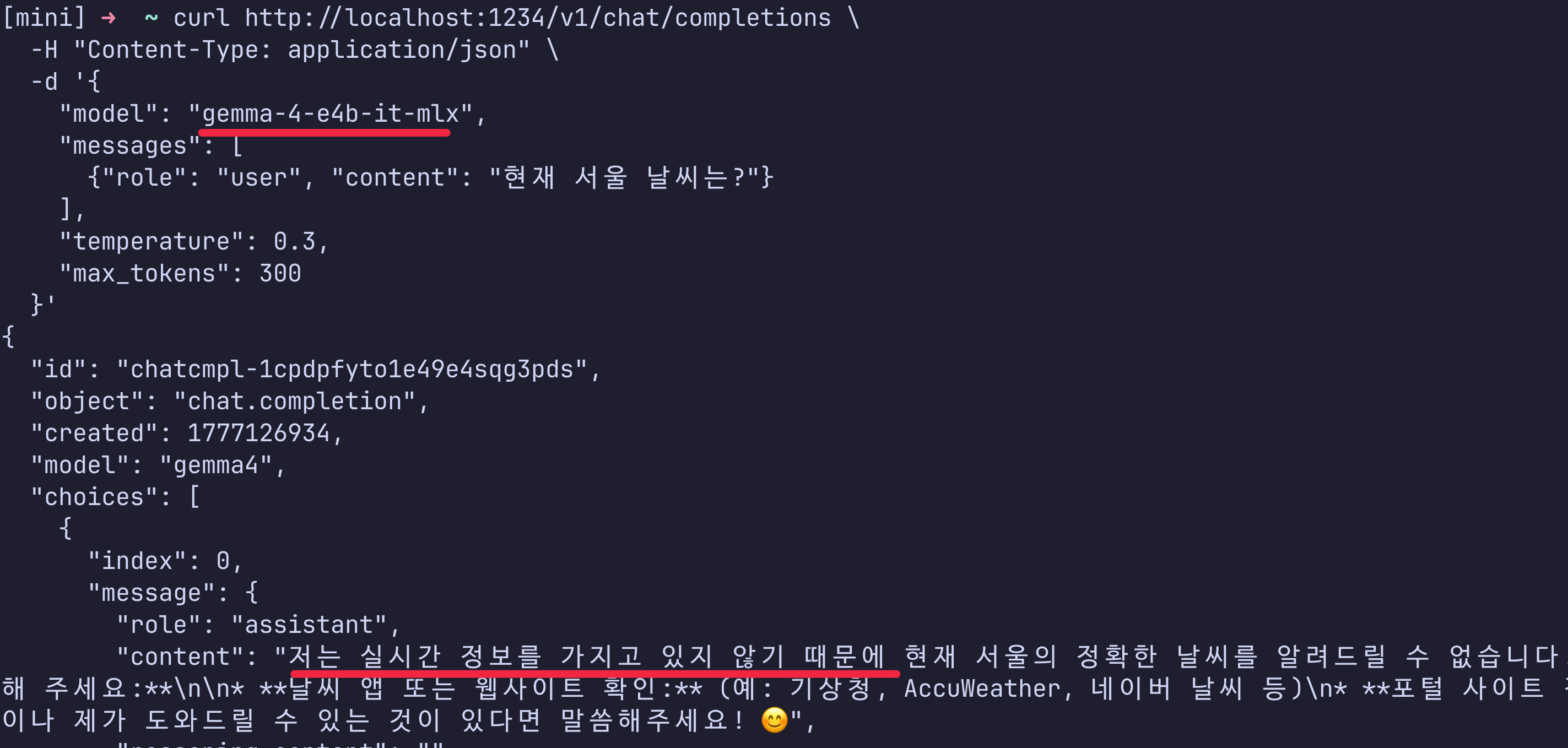
그리고 LM Studio chat API에 identifier를 설정하여 질문을 보낼 수 있습니다.
curl http://localhost:1234/v1/chat/completions \
  -H "Content-Type: application/json" \
  -d '{
    "model": "gemma-4-e4b-it-mlx",
    "messages": [
      {"role": "user", "content": "현재 서울 날씨는?"}
    ],
    "temperature": 0.3,
    "max_tokens": 300
  }'
종료
lms server stop 명령어로 서버를 종료한 후, lms unload로 로드된 모델을 해제합니다.
lms server stop
lms unload gemma4
또는
lms unload --all
OpenClaw 연동
OpenClaw와 LM Studio를 연동하려면, LM Studio 모델의 context window 크기를 최소 16K 이상으로 설정해야 합니다.
# 기존 모델 언로드
lms unload --all

# context length 지정해서 다시 로드
lms load gemma-4-e4b-it-mlx --context-length 32768 --gpu max
OpenClaw와 LM Studio를 연동하려면 LM Studio 토큰도 필요합니다. 토큰은 LM Studio 데스크톱 앱에서만 설정할 수 있습니다.
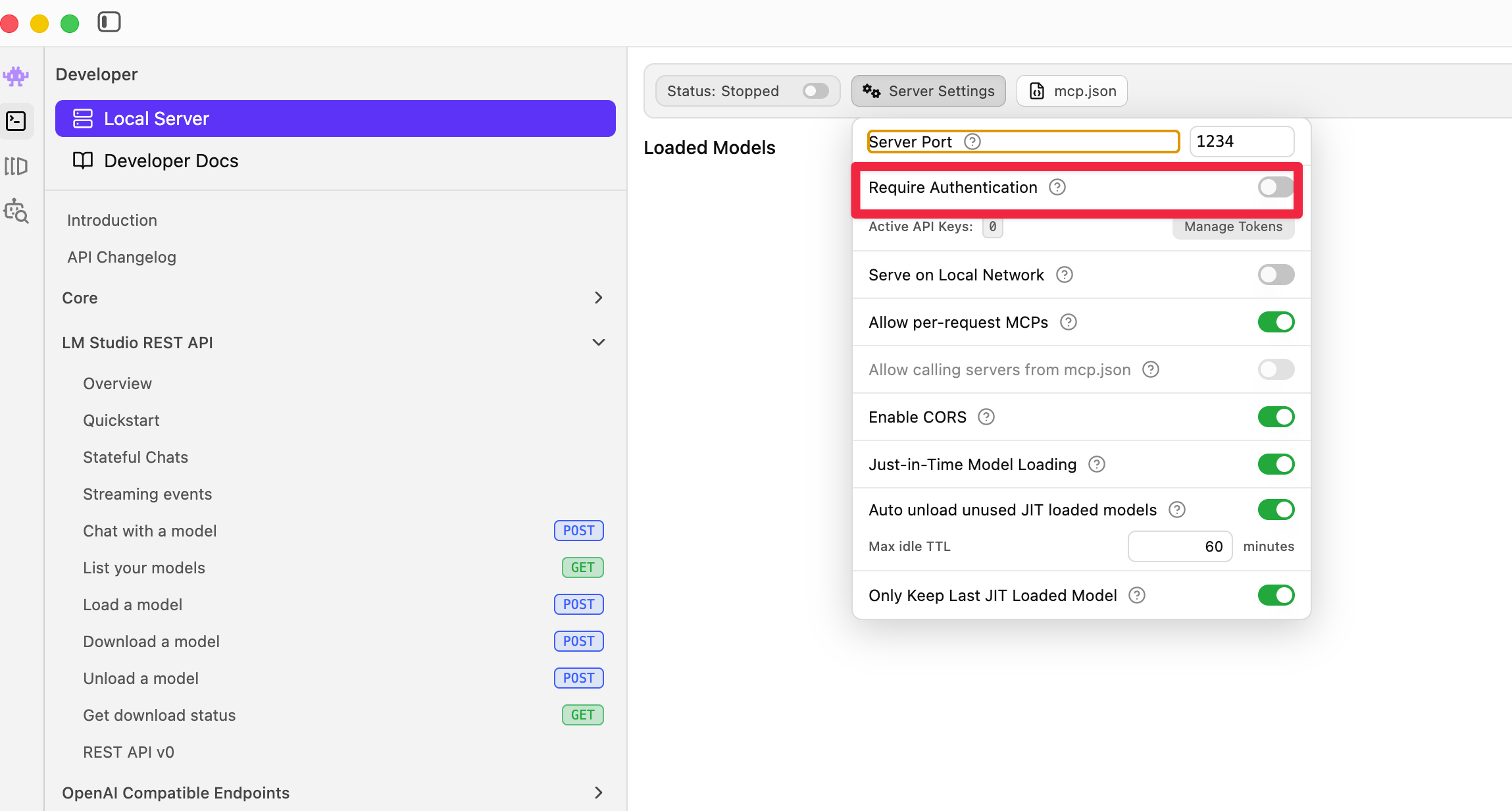
OpenClaw 설정이 익숙하지 않다면 openclaw onboard로 쉽게 설정할 수 있습니다. 설정 과정에서 LM Studio 토큰을 입력하는 단계가 있습니다.
openclaw onboard
OpenClaw 설정이 모두 끝났다면 openclaw tui에서 LM Studio 모델을 사용할 수 있습니다.
openclaw tui
참고자료
'전공영역 공부 기록' 카테고리의 다른 글
| AI에게 youtube 영상을 내 관점으로 분석하게 시키는 방법 (0) | 2026.04.26 |
|---|---|
| macOS끼리 SSH 연결이 자꾸 끊길 때 keepalive 설정하기 (0) | 2026.04.26 |
| site to site vpn 구축 후 꼭 체크해야할 것 - 재협상 정상유무 (0) | 2026.04.24 |
| opus 4.7 출시와 내가 생각하는 큰 변화 2가지 - 비용증가와 이미지 처리 성능 증가 (0) | 2026.04.17 |
| 파인튜닝이란? - 맞춤형 AI모델 (1) | 2026.04.15 |